
From a client PC - License Expired
You may see the following message from the client PC. Both can be used to start the offline activation process.
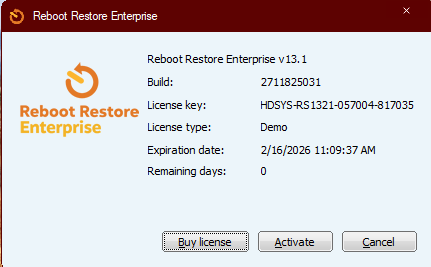 |
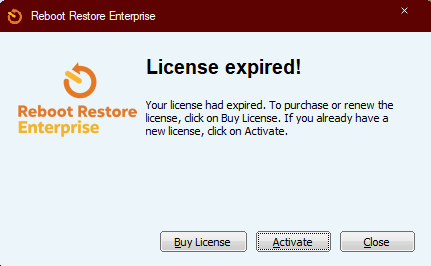 |
- Click on Activate
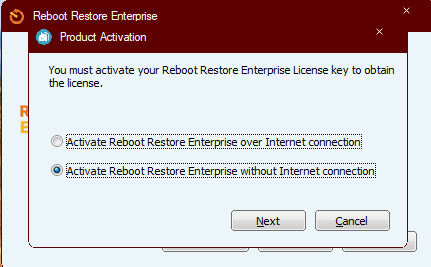
- Select Activate Reboot Restore Enterprise without Internet connection
- Click Next and the following dialog will be presented with unique details from your PC (screenshot just an example)
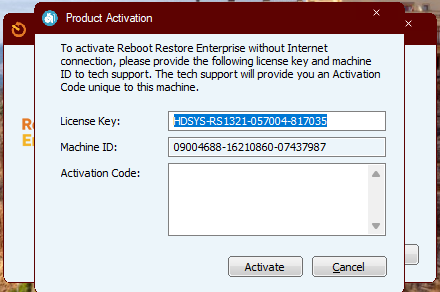
-
Create a support ticket and copy both the License Key and Machine ID in the Ticket Description.
- Our team will reply with an Activation Code (typically within 24 hours of your ticket request)
Offline activation via the EndPoint Manager Console
If you're using Reboot Restore Rx Enterprise or RollBack Rx Pro, the built-in Endpoint Manager console can be used to activate client PCs on their behalf. This is especially useful in environments where client machines don't have direct internet access.
To use this method, ensure the following:
- The console PC or server has an active internet connection.
- Client PCs can communicate with the Endpoint Manager console over your local network.