
Uninstalling the Reboot Restore client requires the Administrator password.
From Windows' Installed Apps
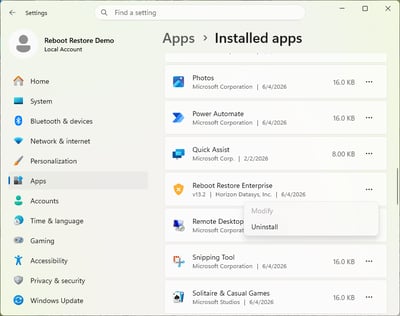
You perform an uninstall of the Reboot Restore client from the Windows Installed Apps list.
|
Navigate to Settings > Apps > Installed apps list Scroll down to Reboot Restore. If you have our Standard edition installed, you'll see Reboot Restore Standard and if you have our Enterprise edition installed, you'll see Reboot Restore Enterprise listed. |
 |
|
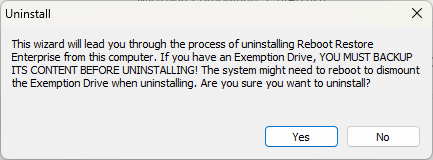
Once you initiate the Uninstall action, you will be prompted by the following warning. |
 |
|
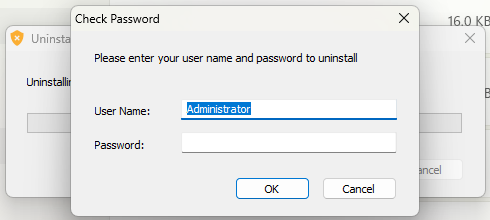
To complete the uninstall of the Reboot Restore client, your Administrator password (or a user with uninstall permission) will be required. |
 |
From Pre-OS Bootloader
Uninstalling via the Pre-OS Bootloader is useful if your Windows PCs won't boot up.
Access the Pre-OS Bootloader by tapping on the HOME key when you see the Reboot Restore splash screen. Enter your Administrator password to access the following menu. Using your keyboard, tap the down arrow until you see the selector on Uninstall. Hit Enter to proceed with the uninstallation. 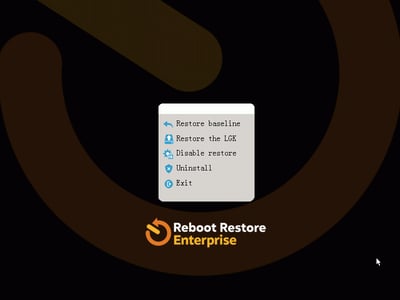
From the EndPoint Manager Console
This option is only available for users of the Enterprise edition of Reboot Restore.
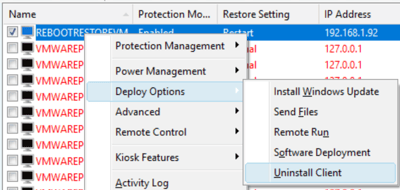
The following steps can be performed from the EndPoint Manager Console as long as the connected PCs are online. Offline PCs cannot be uninstalled.
|
1. From the console, select a PC or a group of PCs. 2. Right-click or click on the Clients menu in the console toolbar 3. Navigate to Deploy Options > Uninstall Client |
 |