Uninstalling RollBack Rx from Windows
You can remove RollBack Rx from your computer through one of the two options provided in Windows
- Uninstall RollBack Rx from Windows Settings > Apps > Apps and Features
- Uninstall RollBack Rx from All Programs > RollBack Rx Professional > Uninstall.
The uninstaller will prompt you to select a snapshot to uninstall the system to. You can choose to keep the current system and data or return the computer to another snapshot during uninstall. The snapshot selected here will be the final state of the PC after uninstalling RollBack Rx.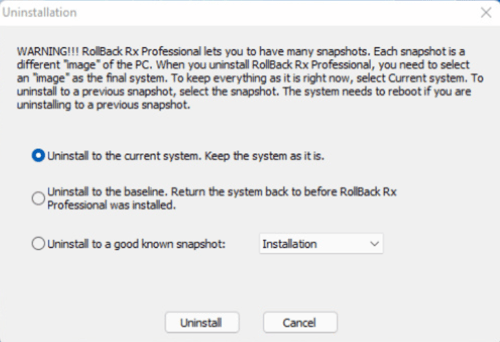
If you are experiencing problems with your computer, DO NOT attempt to uninstall RollBack Rx first. Rolling-back the system to a prior snapshot might fix the problem. If you have problems accessing either the RollBack Rx Application Console or the Subsystem Console to perform a rollback, contact Horizon DataSys technical support by creating a ticket before attempting to uninstall RollBack Rx.
Uninstalling RollBack Rx when Windows Fails to Boot
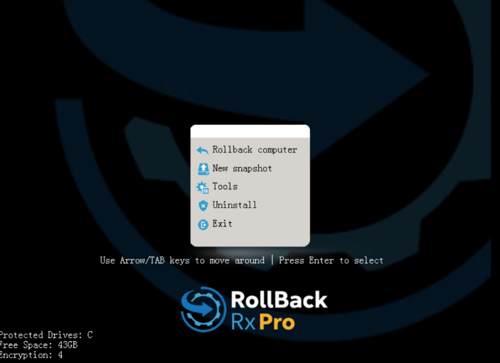
If you cannot boot into Windows and you need to uninstall RollBack Rx, you can uninstall the program from the Subsystem Console (Pre-OS boot loader).
-
Restart the computer
-
Press the HOME key when you see the RollBack Rx splash screen to enter the Subsystem Console.
- On laptop or multifunction keyboards, you may need to press the Fn+HOME key combination
-
Enter the RollBack Rx username and password if access control is enabled.
-
Select Uninstall from the menu.
-
Uninstall will prompt you to select a snapshot to uninstall to. The snapshot you select will be the final state of the PC. Click on Next to continue.