
Issue
After installing the Reboot Restore or RollBack Rx Pro client, the required reboot may trigger a "Secure Boot Violation" error, preventing the PC from loading Windows.
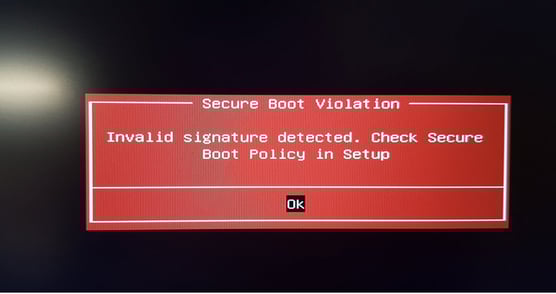
Cause
Although Reboot Restore/Rollback Rx Pro utilizes a Microsoft-signed bootloader for Secure Boot compatibility, specific hardware configurations may require manual intervention if the default UEFI settings block the software’s certificates.
Solution
(1) Enable Microsoft UEFI CA the BIOS
- Restart your computer and go to the BIOS
- Navigate to Boot Configuration > Secure Boot
- Toggle or Select "Enable Microsoft UEFI CA"
NOTE: The location of this setting varies by motherboard and BIOS manufacturer
sample below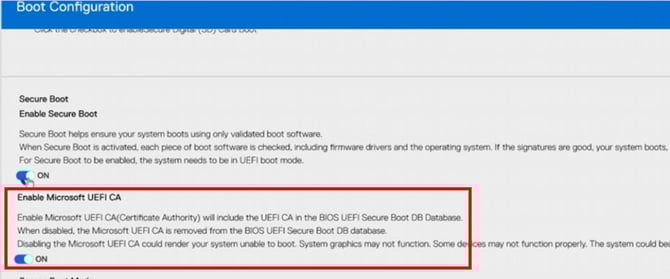
(2) Disable Secure Boot -- Use this option only if there are no available option in the BIOS to Enable Microsoft UEFI CA
To disable Secure Boot
- Access your computer's UEFI/BIOS setup by restarting and pressing a designated key (commonly F2, F12, Delete, or Esc).
- Navigate to the "Security" or "Boot" tab, locate "Secure Boot," set it to "Disabled" then save changes (usually F10) and exit
NOTE: The location of this setting varies by motherboard and BIOS manufacturer
-------
Please submit a support ticket if you need further assistance